

There are several ways to log into the Smart Weed Alert Tool (SWAT) once you have created an account.
All of the methods below use Two-Factor Authentication (TFA). That means besides simply entering your username and password, you must also authenticate yourself using a second method.
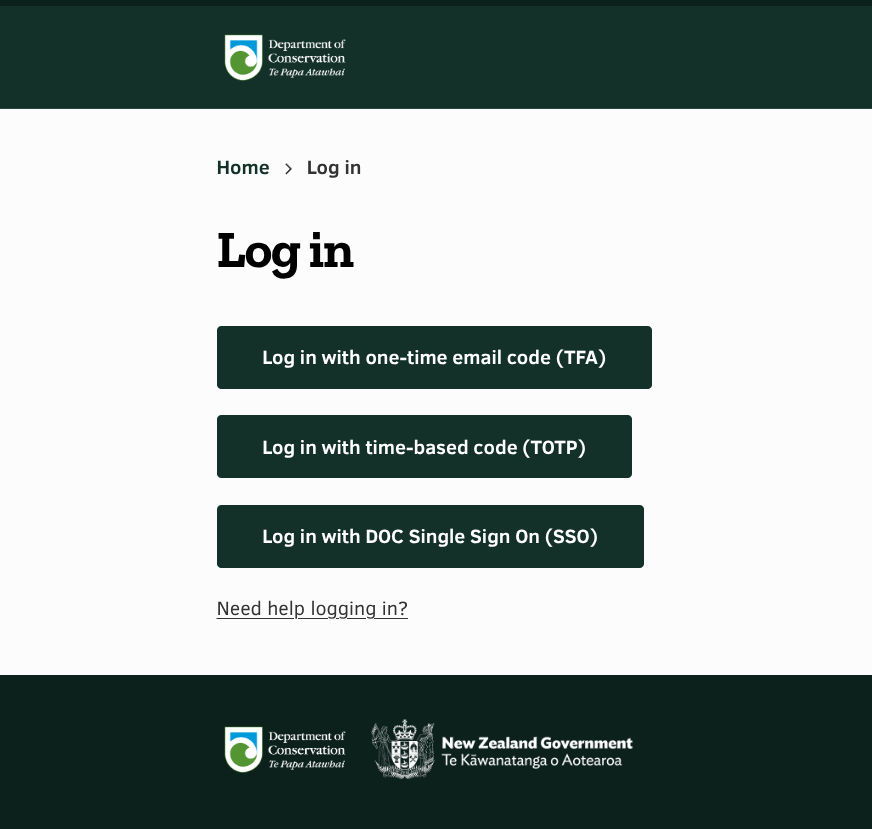
At log in time, you will be able to choose which method you want to use.
The options available to you depend on your account settings and identity.
Using your smart phone (TOTP)

All users must set up a Time-based One Time Password (TOTP) after they create their account.
If you are a new user, this is the most common authentication method you will use.
Using TOTP involves using your smart phone and an accompanying app in order to securely generate one-time passwords.
A list of common apps used for TOTP can be found below:
- Google Authenticator (Android)
- Google Authenticator (iOS)
- Microsoft Authenticator (Android/iOS)
- Twilio Authy (Android/iOS)
- FreeOTP (Android/iOS)
- GAuth Authenticator (Desktop)
When you first set up TOTP, you will be prompted to scan a QR code, and then enter a unique 6 digit code that your TOTP app generates every 60 seconds.
Every time you log on in the future, you will be prompted for a new unique 6 digit code.
"Your account must have TOTP enabled, but you did not set it up at account creation time"
If you see this error after logging in, that means your account details are valid, but you did not properly set up TOTP after registering your account.
In order to log in again, you will need a staff member to reset your access. Please contact us for support.
Once you regain access to your account, please set up TOTP so you don't lose access in the future.
Using your account email (TFA)
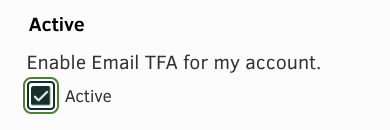
This is a secondary form of two factor authentication that you may opt into at account creation time by checking the box that reads "Enable Email TFA for my account" or by navigating to My Account > Edit and updating your account details.
This form of authentication is only permitted to users who opt-in to using it. If you try to log in to your account using email TFA before it is enabled, you will not be allowed to log in with this method.
After you provide your account details at login, you will be prompted to enter a 6 digit code. That code will be sent to the email address you used to register your SWAT account.
Using Single Sign On (SSO)

Single Sign On is a form of authentication that is only available to employees of the Department of Conservation (DOC).
It involves using a valid DOC email account as the second factor of authentication. You account details will be created from those recorded on your DOC account.
In fact, it is the required log in method for accounts that were created with a @doc.govt.nz address handle.
When you click this button, you will be directed to the official Microsoft login used by DOC. Once you enter you account details, you will be redirected to your SWAT account.